Plenix 2026.10.54 — Events: registration pages, tickets, waitlists, check-in and badges
Events lets you run webinars, conferences, workshops, open days and customer evenings from Plenix. Publish a branded event page, sell or give away tickets, cap places with a waitlist, send confirmations and reminders automatically, check people in with a QR code, print name badges and see who came — with every registration on the CRM contact and company.
T
The Plenix Team·20 October 2026·4 min read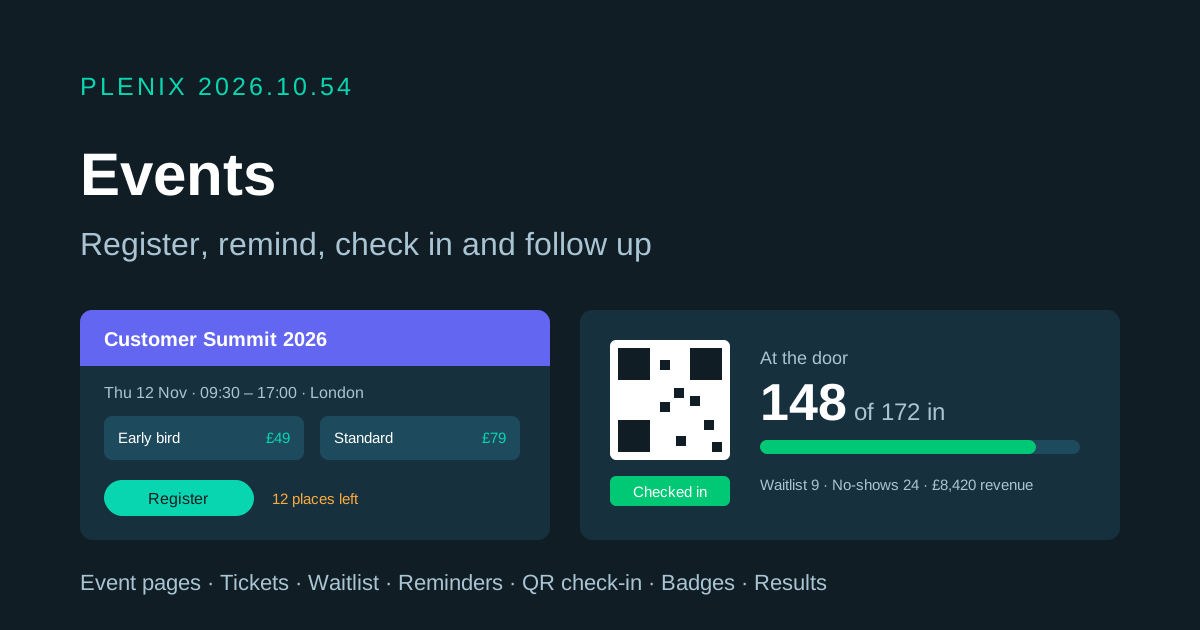
Release 2026.10.54 brings Events to Plenix (CRM → Events in the sidebar). Events comes with CRM, so it is on every plan. Plans and prices have not changed.
New features
- Events for any occasion. Run in-person, online or hybrid events. Start from a blank event or one of six templates — webinar, conference, workshop, open day, training course and customer meetup — each with a ready agenda, tickets and questions you can change.
- A branded event page. Every event gets its own public page with your logo, a cover image and colour, the date and time in the event's time zone, the venue or "online", an agenda with rooms and tracks, and speaker profiles. Share the link anywhere.
- Tickets. Offer free and paid ticket types, each with its own price, number available and sale window (for example an early-bird price that ends on a date). Paid tickets do not take card payments on the page — you invoice the attendee or their company from Plenix.
- Places, approval and waitlist. Set a maximum number of places. When the event is full, people can join a waitlist and are moved up automatically, in order, when someone cancels. You can also choose to approve every registration by hand.
- Your own questions. Ask attendees anything when they register — short or long answers, pick one, pick several, or yes/no — and choose whether phone and company are asked, optional or required.
- Confirmations and reminders by email. Attendees get a confirmation with a QR ticket and a calendar file, then reminders before the event (by default a day before and an hour before; you choose the timings). Online events send the join link only to registered people.
- Attendees manage their own place. The link in every email opens the attendee's ticket, with their QR code, join link and calendar file. If you allow it, they can cancel their place themselves, which frees it for the waitlist.
- Check-in at the door. Scan QR tickets with a phone or laptop camera, use a USB or Bluetooth barcode scanner, type the code, or find people by name. Each scan shows clearly whether the person is in, already checked in, or not confirmed, and warns when a ticket is unpaid.
- Name badges. Print name badges with a QR code for everyone confirmed — six or eight to an A4 sheet, or one per page.
- Email your attendees. Send a message to everyone confirmed, the people who came, the no-shows, the waitlist or those awaiting approval. Start from ready-made messages for joining details, a change of plan, a thank you or "sorry we missed you". Every message sent is kept on the event.
- After the event. When an event ends, Plenix marks it completed, records no-shows (when check-in was used) and can send attendees a feedback survey from Surveys automatically.
- Results. See registrations over time, places left, the waitlist, who came and who did not, revenue and unpaid tickets, sales by ticket type, how people registered, arrivals at the door and a chart for each question. Click any figure or bar to see the people behind it.
- Events on the customer record. Registrations appear on the CRM contact and on the company's Customer 360 tab, showing which events they signed up for and whether they came. New registrants can be added to the CRM as contacts automatically.
Improvements
- Attendee list. Filter by status, attendance, ticket and payment, search by name, email or company, and open anyone to confirm, decline, move off the waitlist, change their ticket, mark them paid, resend their ticket or create an invoice.
- Import and export. Add people one at a time or import up to 1,000 from a CSV file, and download the attendee list with every answer as a CSV.
- Working with colleagues. Keep an event private to you and the people you add, or share it with everyone who uses CRM. Duplicate an event to run it again, cancel it with a message to everyone registered, or archive it.
- Calendar. Events appear on the shared team calendar.
- Automations. Three new automation triggers: "Event Registration Received", "Event Registration Changed" and "Attendee Checked In".
Security
- Event pages and registrations are rate-limited and protected against automated sign-ups.
- Each attendee's link only opens their own registration, and a private event is invisible to anyone who has not been added to it.
- Attendee names, emails and phone numbers are stored encrypted.