Plenix 2026.10.24 — Remote sessions that always show the taskbar
Fill now keeps the top of the screen and the taskbar in view at any window size, a new Stretch mode fills the window exactly, All Monitors opens on the main screen, and remote sessions recover on their own when the first connection stalls.
T
The Plenix Team·6 October 2026·2 min read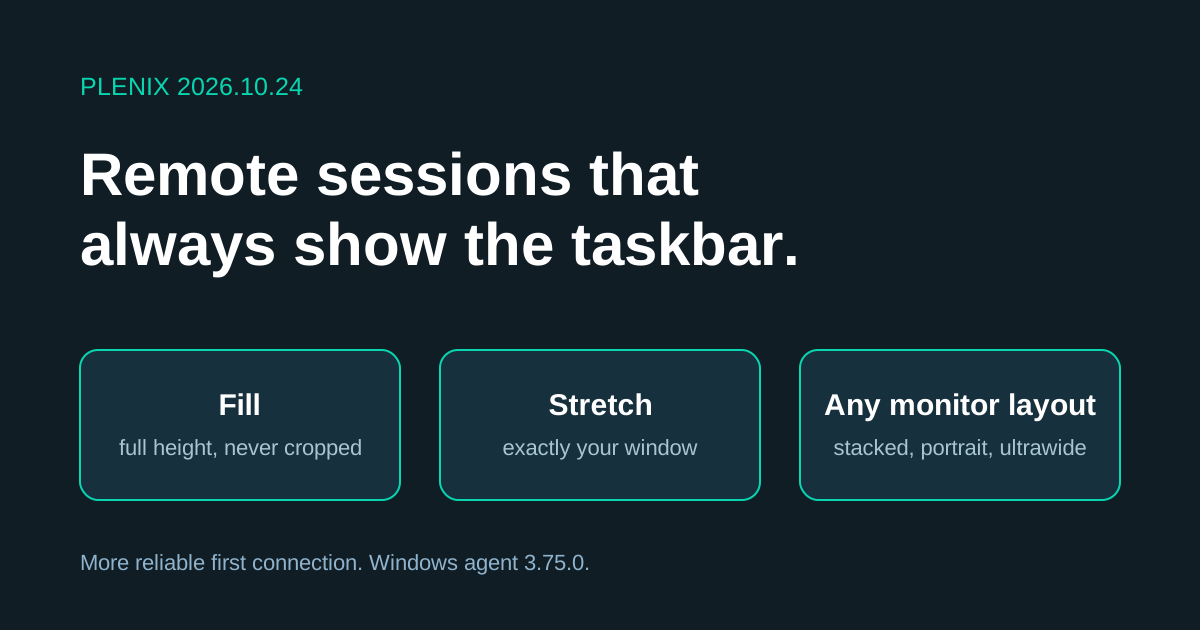
Release 2026.10.24 follows up on the remote viewer overhaul. It changes how the picture is sized so the taskbar is never pushed off screen, and makes the first connection to a device more reliable. Everything here applies to both remote viewers.
New features
- Stretch view. A new Stretch mode makes the remote screen exactly the size of your window: no bars, and nothing off screen. If the remote screen and your window are different shapes, the picture is widened or narrowed to match.
- All Monitors opens on the main screen. When you choose All, the view starts on the device's main monitor, with its taskbar in view, wherever that monitor sits in the arrangement. Move the pointer to an edge to reach the others.
Improvements
- Fill always shows the top and the taskbar. Fill now sizes the remote screen to the full height of your window, windowed or full screen. The shape is kept. A screen wider than your window, such as an ultrawide, pans left and right with the pointer; nothing is hidden above or below.
- Any monitor arrangement. In All view, Fill sizes the picture so the tallest monitor fills your window. Side-by-side, stacked, portrait and mixed-size monitors are each shown at a usable size, and you pan between them in whichever direction they are arranged.
- Four modes in the toolbar. Fit, Fill, Stretch and 1:1 are one click each, in both viewers.
Changes
- Fill no longer crops. In 2026.10.23, Fill grew the picture until it covered the window, which could push the taskbar out of view. Use Stretch if you want the window covered edge to edge.
- Windows agent 3.75.0. Devices update automatically. The connection fixes below need this version on the device.
Fixes
- First connection that timed out. A remote session could show "Connection timed out" on the first try and connect on the second. The viewer now retries once by itself before showing an error, and the device no longer restarts its screen capture while the viewer is still waiting for the first picture.
- Fallback when the fast connection stalls. If the direct connection to a device is set up but never completes, the device now switches to the standard connection instead of sending nothing.