Plenix 2026.10.59 — Offboarding: one checklist for everything that has to happen when someone leaves
HCM gets a full offboarding hub. Start offboarding and Plenix finds everything the leaver still holds, from laptops and direct reports to shifts, tickets and open claims, and builds the checklist for you. It works out their holiday to the leaving date, switches off their access on the day, and gives them a private exit interview. HR gets turnover analytics.
T
The Plenix Team·21 October 2026·4 min read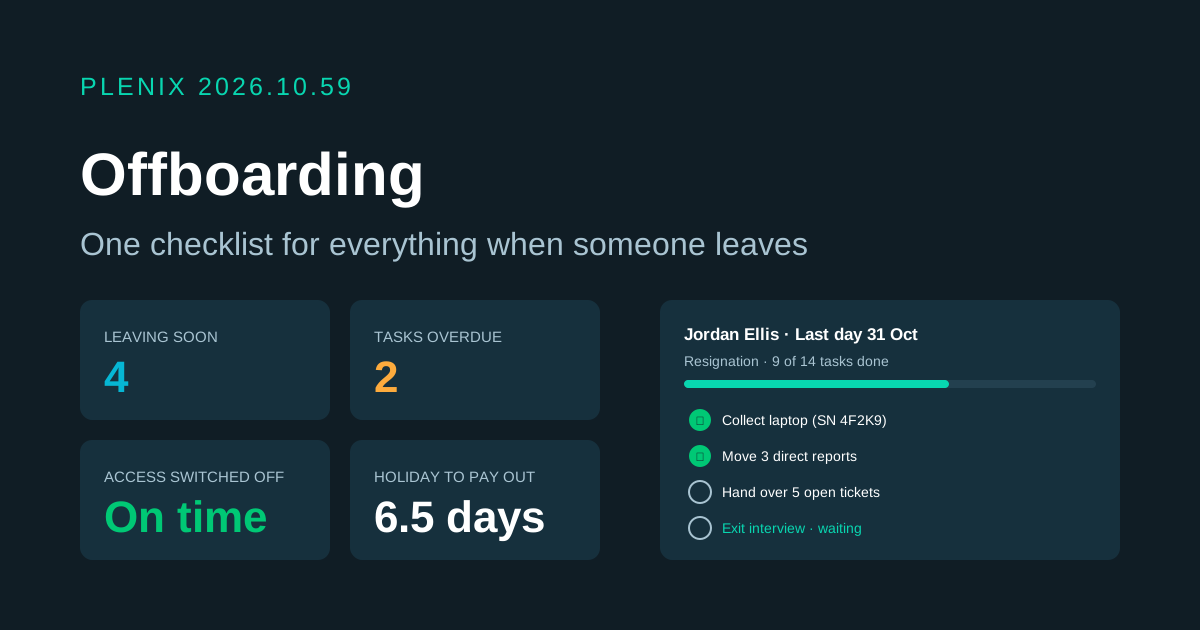
Release 2026.10.59 adds Offboarding (HCM → Offboarding in the sidebar). Offboarding is part of the HCM module, so it comes with the Business and Enterprise plans. Plans and prices have not changed.
New features
- Start offboarding in one step. Pick the employee and enter the reason, the date notice was given, their last working day and their leaving date. The leaving date can be later than the last day, for garden leave. Before you confirm, you see everything the person still holds.
- A checklist that builds itself. Plenix looks at what the leaver still has: assigned equipment, direct reports, future shifts, upcoming 1:1s, open expense claims and leave requests, open tickets, jobs they are hiring for, onboarding they run and succession plans they are part of. It adds a task for each one, on top of the checklist for that leaving reason. Each task goes to HR, the manager, IT, finance or the leaver, and is due a set number of days before or after the last day.
- One-click actions. From the leaver's page you can move their direct reports to a new manager, cancel shifts after their last day, cancel upcoming 1:1s, see their open tickets, and switch off their access. Each action ticks off its own task.
- Access switched off on the day. On the access date (or the leaving date, if you don't set one) Plenix signs the person out everywhere and suspends their login. On the leaving date the employee record is marked as left. You can turn either of these off in settings and do it by hand instead.
- Holiday to the leaving date. The leaver's page shows the holiday they have earned this year up to the leaving date, what they have taken or booked, and the balance. You choose whether to pay out unused days or recover days taken in advance. The figures update if the dates change.
- Exit interview. The leaver gets a private exit interview with your own questions, a 1–5 rating, whether they would recommend working here, and their main reason for leaving. HR sees every answer. The manager sees it only if the leaver chooses to share it.
- The leaver's own view. People who are leaving see their own checklist, their key dates, their holiday balance and the exit interview. They never see HR's private notes.
- Turnover analytics. See leavers by month, voluntary and regretted leavers, reasons, the departments losing the most people, average time with the company, and a summary of exit interview answers. The summary only appears once there are enough answers to keep them anonymous.
Improvements
- Your own checklists. Build checklist templates for each leaving reason, for example resignation, redundancy or end of contract. Mark one as the default and set when each task is due. A built-in checklist is used when you haven't made one.
- My tasks. Everyone assigned an offboarding task sees it in one list, soonest due first. Assignees get a morning reminder when a task is due within two days or overdue, repeated every three days until it is done.
- Check for new items. If the leaver picks up a new ticket or shift during their notice, check again and the missing tasks are added.
- Cancel when plans change. If someone withdraws their resignation, cancel the offboarding with a reason. Their employee record goes back to how it was. Access you have already switched off stays off until you switch it on again under Users.
- Automations. Workflow rules can react to offboarding starting, access being switched off, the employee being marked as left, tasks being done, and offboarding completing or being cancelled, for example to post in a channel or create an IT ticket.
Security
- Access really ends. Switching off access ends every session the person has open, both in your workspace and on the Plenix sign-in, so they cannot carry on with a session they were already logged into.
- Private notes stay private. HR's notes, the rehire decision and whether a loss is regretted are visible to HR only. Managers see only the tasks and details they need.